9. Plan and track inventory transfers
Transfers track a planned movement from one active synced Shopify location to another. Dispatch and destination receipt are separate operations so in-transit, accepted, damaged, rejected, and missing quantities remain visible.
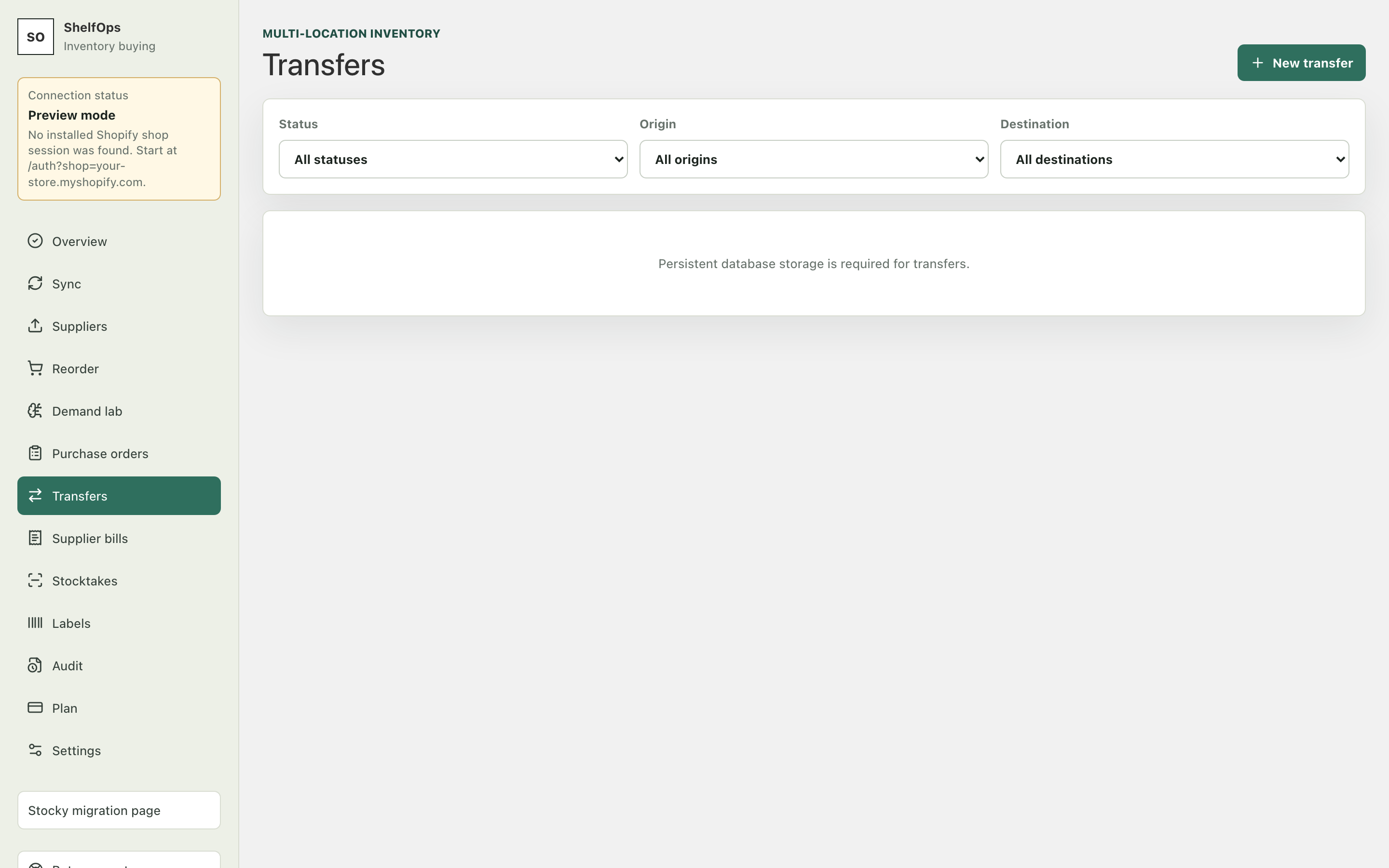
Create and dispatch a transfer
- Open Transfers and create a transfer.
- Select different origin and destination locations.
- Add variants and requested quantities.
- Review the saved dispatch preview.
- In preview-only mode, record the operation without changing Shopify.
- Transfer writeback is currently unavailable in production. Record and review the dispatch in preview-only mode; no Shopify source decrement is performed.
Receive the transfer
- Open the in-transit transfer.
- Classify destination quantities as accepted, damaged, rejected, or missing.
- Review the exact receipt preview.
- Confirm the internal preview. Transfer receipt writeback is currently unavailable, so Shopify destination inventory is not incremented by this workflow.
Statuses and recovery
Typical states are Draft, Ready, In transit, Partially received, Completed, Cancelled, and Uncertain. A transport timeout makes the transfer uncertain and blocks a new preview until the saved operation is retried or manually reconciled. Corrections are linked compensating operations and cannot exceed the remaining correctable amount.